Where Brave Browser Profiles Are Located
With Brave Browser running, open a New Window and go to: brave://version
Scroll down to Profile Path: You should see, for
Linux OS - usually but not always:
/home/[username]/.config/BraveSoftware/Brave-Browser/[profile_folder_name]
MacOS: /Users/[username]/Library/Application Support/BraveSoftware/Brave-Browser/[profile_folder_name]
Windows OS: C:\Users\[UserName]\AppData\Local\BraveSoftware\Brave-Browser\User Data\[profile_folder_name]
The actual Profile folder names for [profile_folder_name] would be:
- Default
- Profile 1
- Profile 2
- Profile n [where n is the next increment: 3, 4, . . . etc.]
Upon the original installation and setup of Brave Browser (“BB”):
The 1st BB User Profile is named Profile 1 and its data is maintained within the folder named Default:
- MacOS:
/Users/[username]/Library/Application Support/BraveSoftware/Brave-Browser/Default - Windows OS:
C:\Users\[UserName]\AppData\Local\BraveSoftware\Brave-Browser\User Data\Default
When proceeding with the creation of additional BB User Profiles:
The 2nd BB User Profile name will be Profile 2 and its data will be maintained within the folder named Profile 1:
- MacOS:
/Users/[username]/Library/Application Support/BraveSoftware/Brave-Browser/Profile 1 - Windows OS:
C:\Users\[UserName]\AppData\Local\BraveSoftware\Brave-Browser\User Data\Profile 1
The 3rd BB User Profile name will be Profile 3 and its data will be maintained within the folder named Profile 2:
- MacOS:
/Users/[username]/Library/Application Support/BraveSoftware/Brave-Browser/Profile 2 - Windows OS:
C:\Users\[UserName]\AppData\Local\BraveSoftware\Brave-Browser\User Data\Profile 2
Repeating the pattern of BB User Profile creations:
- Actual 1st BB User Profile data is in folder named
Default - Actual 2nd BB User Profile data is in folder named
Profile 1 - Actual 3rd BB User Profile data is in folder named
Profile 2 - Actual 4th BB User Profile data is in folder named
Profile 3
Renaming the BB User Profile name(s) . . . DOES NOT CHANGE the folder names and structure:
- Renaming 1st BB User Profile name, from
Profile 1toBob8← still uses folder namedDefault - Renaming 2nd BB User Profile name, from
Profile 2toHope← still uses folder namedProfile 1 - Renaming 3rd BB User Profile name, from
Profile 3toEmma← still uses folder namedProfile 2 - Renaming 4th BB User Profile name, from
Profile 4toWork← still uses folder namedProfile 3
DO NOT CHANGE the names of the folders.
Also, do not swap folders that have unmatched names. For example, do not swap folder Profile 2 for folder Profile 5.
The above notes, are also at:
Establish routines for preserving your data:
How to back up Passwords that are stored by Brave Browser
Scrolling down the webpage at:
https://support.brave.com/hc/en-us/articles/360018185951-How-do-I-use-the-built-in-password-manager
A note states:
“Export Passwords - Selecting Download file will export all credentials you’ve saved in your browser as a
.CSVfile onto your system. Note that anyone who has access to your system will be able to open and view this file, so it is recommended that you delete this file once you’ve used the file for its intended purpose.”
Tips on how to encrypt that .CSV file:
- ‘https://www.crucial.com/articles/pc-users/how-to-password-protect-a-folder’
- ‘https://nordvpn.com/blog/how-to-password-protect-a-zip-file/’
- ‘https://www.winzip.com/en/features/security/password-protection/’
Be sure to safely store a copy of that CSV file on an external drive.
How to back up your Bookmarks as an HTML file
Two ways to get to the Bookmarks Manager.
One way:
- Launch Brave and open the Main menu:

- Select
Bookmarks --> Bookmarks Manager - Open the More options menu at the top right
- Select
Exportand choose where you want to store the exported file.
Another way:
- In a new Brave Browser window, go to:
brave://bookmarks - Locate the “Organize” (vertically-arrayed 3-dot) menu button in the upper-right area of the window; click on that
- You should get a pop-up menu, in which you click on the “Export bookmarks” selection and choose where you want to store the exported file.
The exported file name: “bookmarks.html”
Be sure to safely store a copy of that HTML file on an external drive.
I suggest naming the backups in chronological order; for example:
20250926-2128_Friday_BB_Bookmarks.html
20250927-2128_Saturday_BB_Bookmarks.html
20250926-2131_Friday_BB_Passwords.csv
20250927-2131_Saturday_BB_Passwords.csv
Windows OS users, maintain a daily routine to backup the User Data folder:
C:\Users\[UserName]\AppData\Local\BraveSoftware\Brave-Browser\User Data\Default
MacOS users, backup the Brave-Browser folder:
/Users/[username]/Library/Application Support/BraveSoftware/Brave-Browser/Default
Linux OS users, backup the Brave-Browser folder:
/home/[username]/.config/BraveSoftware/Brave-Browser/
All backups should be stored somewhere that is NOT within the Brave Browser installation paths. Of course, the Passwords.csv files (however you name them) should be stored within an encrypted directory / folder - “vault” of some kind.
Windows OS users, establish a daily routine of creating System Restore Points.
Automate Daily System Restore Point Creation
Enable System Protection
Press Win + R, type SystemPropertiesProtection, and press Enter
Under the Protection Settings list, enable protection for your system drive (usually C:) and allocate ~5-10% of space for restore points.
Create a PowerShell script to generate a restore point
Open Notepad, paste the following:
Checkpoint-Computer -Description "Automatic Restore Point" -RestorePointType "MODIFY_SETTINGS"
Save that as:
C:\Scripts\CreateRestorePoint.ps1
Schedule it
Open Task Scheduler → Create Task
Name: Automatic Restore Point
Triggers: Everyday at a convenient time
Actions:
Program/script: powershell.exe
Add arguments: -ExecutionPolicy Bypass -File "C:\Scripts\CreateRestorePoint.ps1"
Under Conditions, uncheck “Start the task only if the computer is on AC power” if you want it to run on laptops.
Under Settings, choose “Run task as soon as possible after a scheduled start is missed.”
You now have an automated Windows OS System Restore Point created daily.
Event-triggered restore points
https://learn.microsoft.com/en-us/windows/win32/sr/restore-points#event-triggered-restore-points
Suggested reading, studying:
‘Lost all cookies including passwords and site data - #2 by Saoiray’
SOMETIMES A BB user has recovered via:
‘All Brave Profiles Gone After Corruption Message – Urgent Help Needed - #5 by thepanchalshadow’
SOMETIMES A BB user has recovered via:
‘Profiles gone AWOL - #2 by jessepf’
SOMETIMES: A BB user has recovered passwords by using the backed up Login Data file; and sometimes by doing that PLUS using a previously-backed up Local State file; and sometimes by a combination of: Resetting the Brave Browser Settings, using the backed up Login Data file, plus, using the previously-backed up Local State file.
SOMETIMES: Passwords come back after yet another reboot.
SOMETIMES: Recovery via Brave Sync.
SOMETIMES: Recovery by fixing file and folder permissions.
‘Everything gone after update: Passwords, Bookmarks, Top Sites - #2 by Mattches’
The running battle reports at GitHub > Brave issues:
‘https://github.com/brave/brave-browser/issues/40375’
Long running battle reports at the Brave Community - since 2023 - the topic has been viewed more than 18,000 times:
‘NOTICE: Unexplained Data Loss Issue’
In a Brave Browser New Window, at brave://flags, search for Override software rendering list ← if that is enabled, the browser might suffer a reset → on Windows OS ARM machines.
File and Folder Permissions
File and Folder Permissions - Brave Browser (Windows OS):


Ref.: ‘https://github.com/brave/brave-browser/issues/38609’
And then, there is the following:
‘Lost cookies, extensions, filters, but tabs are there, on 2 different computers - #3 by Flex’
I asked Perplexity.ai to decipher those commands. The reply:
Those three commands are working together to take control of the Brave Browser profile folders and reset their permissions for the Administrators group.
1) takeown /F ... /R /D Y /A
takeown /F C:\Users\USERNAME\AppData\Local\BraveSoftware\Brave-Browser /R /D Y /A
takeown– changes the owner of files/folders./F <path>– target folder: here it is the Brave-Browser folder in your profile./R– recurse into all subfolders and files./D Y– automatically answer “Yes” to any confirmation prompts when access is denied./A– make the Administrators group the owner (instead of just the current user).
Effect: Administrators become the owner of the entire Brave-Browser tree under that user profile, including all subfolders and files.
2) icacls ... /setowner Administrators /T
icacls C:\Users\USERNAME\AppData\Local\BraveSoftware\Brave-Browser /setowner Administrators /T
icacls– manages NTFS permissions and ownership./setowner Administrators– explicitly sets the owner to the Administrators group./T– applies to the folder and all subfolders and files.
Effect: Confirms and enforces that Administrators are the owner of everything under Brave-Browser (similar goal to the first command, using a different tool).
3) icacls ... /inheritance:e /T /C
icacls C:\Users\USERNAME\AppData\Local\BraveSoftware /inheritance:e /T /C
/inheritance:e– enables permission inheritance so items inherit ACLs from their parent folder./T– recurse through all subfolders and files underBraveSoftware./C– continue even if errors occur (skips over problem files, keeps going).
Effect: Re-enables normal inherited permissions for everything under BraveSoftware, so permissions flow down from the parent instead of using only custom/blocked ACLs.
Overall purpose
Together, these commands:
- Make the Administrators group the owner of the Brave Browser data folder and all of its contents.
- Ensure that ownership is set consistently using both tools (
takeownandicacls). - Turn inheritance back on for the broader
BraveSoftwarefolder so its permissions are normalized and inherited from its parent, which can fix “Access denied” and permission corruption issues within the Brave profile.
Credentials
Windows Credential Manager
Some info re Windows OS Credential Manager and Brave Sync:
‘Internal Sync Setup Error - My Solution’
Note about that: After testing issue, set ‘Credential Manager’ service start, to manual.
Installation and Un-installation of Brave Browser
Install Brave Browser (Desktop)
Brave Browser Beta
‘https://brave.com/download-beta/’
‘https://github.com/brave/brave-browser/releases?q=beta&expanded=true’
Brave Browser Nightly
‘https://brave.com/download-nightly/’
‘https://github.com/brave/brave-browser/releases?q=nightly&expanded=true’
Brave Browser Stable Release
‘https://brave.com/download/’
‘https://github.com/brave/brave-browser/blob/master/CHANGELOG_DESKTOP.md’
Brave Browser for Linux OS - How to install
‘https://brave.com/linux/’
Brave Browser Release Schedule at Brave GitHub:
‘https://github.com/brave/brave-browser/wiki/Brave-Release-Schedule’
At GitHub, typical example of Brave Browser installers for Windows OS (64-bit machine) users:
ARM: ‘https://github.com/brave/brave-browser/releases/download/v1.85.118/brave-v1.85.118-win32-arm64.zip’
INTEL: ‘https://github.com/brave/brave-browser/releases/download/v1.85.118/brave-v1.85.118-win32-x64.zip’
Determine Windows OS PC architecture - try any of:
Settings → System and then About (bottom left corner). It should be listed under Device Specifications ← scroll to that, and look for System type (example: 64‑bit operating system, x64‑based processor)
Command Prompt: wmic os get osarchitecture
64 architecture, system level installation:
C:\Program Files\BraveSoftware\Brave-Browser\Application\brave.exe
x86 architecture, system level installation:
C:\Program Files(x86)\BraveSoftware\Brave-Browser\Application\brave.exe
64 / x86 architecture, user level installation (NOTE: you must substitute your Windows OS user account name for [UserName]):
C:\Users\[UserName]\AppData\Local\BraveSoftware\Brave-Browser\Application\brave.exe
Linux OS architecture:
‘https://www.man7.org/linux/man-pages/man1/lscpu.1.html’
MacOS architecture:
‘https://docs.cse.lehigh.edu/determine-mac-architecture/’
Uninstall Brave Browser (Desktop)
The Brave Browser application brave.exe etc.:
‘Every time I open the browser it closes again directly - #20 by clifton’
The Brave Browser updater, BraveUpdate.exe:
‘Have to re-install Brave multiple times per day on Windows11 - #24 by mherrmann’
A note from Brave Support, if all you want, is: How do I delete my data in Brave?
'https://support.brave.app/hc/en-us/articles/4413256282765-How-do-I-delete-my-data-in-Brave
IF still struggling to uninstall, try:
https://crystalidea.com/uninstall-tool
Brave Browser System Requirements
Brave Browser Tabs:
‘Every time brave crashes, the restore feature doesn’t work - #2 by 289wk’
Perplexity.ai generated a Windows OS PowerShell script for backing up the User Data folder:
Here is a simple, customizable PowerShell script that backs up a `User Data` folder to a specified backup location and keeps date‑stamped copies.
Replace the paths in the CONFIGURATION section as needed and save as Backup-UserData.ps1.
<#
    Backup-UserData.ps1
    - Backs up a "User Data" folder to a backup location
    - Creates a dated subfolder for each run
#>

#region CONFIGURATION
# Full path to the "User Data" folder you want to back up
$SourcePath      = "C:\User Data"

# Root folder where backups will be stored
$BackupRootPath  = "D:\Backups\UserData"
#endregion CONFIGURATION

# Create a timestamp (example: 2026-01-01_0730)
$timeStamp = Get-Date -Format "yyyy-MM-dd_HHmm"

# Build backup destination folder path
$BackupDestination = Join-Path -Path $BackupRootPath -ChildPath "UserData_$timeStamp"

Write-Host "Source folder:      $SourcePath"
Write-Host "Backup destination: $BackupDestination"
Write-Host ""

# Validate source path
if (-not (Test-Path -Path $SourcePath)) {
    Write-Error "Source path '$SourcePath' does not exist. Backup aborted."
    exit 1
}

# Create backup root folder if needed
if (-not (Test-Path -Path $BackupRootPath)) {
    Write-Host "Backup root '$BackupRootPath' does not exist. Creating it..."
    New-Item -ItemType Directory -Path $BackupRootPath | Out-Null
}

# Create this run's backup folder
New-Item -ItemType Directory -Path $BackupDestination | Out-Null

# Use Robocopy (recommended for reliability and preserving attributes)
$roboLog = Join-Path $BackupRootPath "Backup-UserData_$(Get-Date -Format 'yyyyMMdd').log"

$roboArgs = @(
    "`"$SourcePath`"",        # Source
    "`"$BackupDestination`"", # Destination
    "/E",                     # Copy subdirectories, including empty ones
    "/COPYALL",               # Copy all file info (data, attributes, timestamps, ACLs, owner)
    "/R:1",                   # Retry once on failure
    "/W:2",                   # Wait 2 seconds between retries
    "/MT:8",                  # Multithreaded copy (8 threads; adjust as needed)
    "/LOG+:$roboLog",         # Append output to log file
    "/NFL", "/NDL"            # No file list / no directory list (log is shorter)
)

Write-Host "Starting backup with Robocopy..."
$robocopyExe = Join-Path $env:SystemRoot "System32\robocopy.exe"

# Start Robocopy
& $robocopyExe @roboArgs
$exitCode = $LASTEXITCODE

Write-Host ""
Write-Host "Robocopy exit code: $exitCode"

if ($exitCode -lt 8) {
    Write-Host "Backup completed successfully."
    exit 0
} else {
    Write-Warning "Backup may have encountered errors. Check log file: $roboLog"
    exit $exitCode
}
How to use it
- Edit
$SourcePathto point to your actual User Data folder (for example,C:\Users\YourName\User Data). - Edit
$BackupRootPathto point to the drive/folder where you want backups stored (local drive or network share). - Run PowerShell as Administrator if needed and execute:
Set-ExecutionPolicy -Scope CurrentUser RemoteSigned .\Backup-UserData.ps1 - Each run will create a folder like
UserData_2026-01-01_0730under the backup root, preserving file attributes and permissions similarly to typical Robocopy-based backup scripts used in Windows environments.
How to schedule a PowerShell backup script with Task Scheduler
To schedule your PowerShell backup script with Task Scheduler, create a basic scheduled task that calls powershell.exe and points it to your .ps1 file.
Prepare the script
- Save your backup script as something like
C:\Scripts\Backup-UserData.ps1. - Make sure it runs correctly when you run it manually in PowerShell with:
powershell.exe -ExecutionPolicy Bypass -File "C:\Scripts\Backup-UserData.ps1"
Create the scheduled task
- Press Start, type Task Scheduler, and open it.
- In the right pane, click Create Task… (not Basic Task, to get all options).
- On the General tab:
- Name:
Backup User Data. - Select Run whether user is logged on or not.
- Check Run with highest privileges (often needed for file backups).
- Name:
Set the trigger (schedule)
- Go to the Triggers tab and click New….
- Choose when to run it, for example:
- Begin the task: On a schedule.
- Daily, Recur every:
1days, and set the start time.
- Click OK.
Set the action (run PowerShell)
- Go to the Actions tab and click New….
- Action: Start a program.
- Program/script:
powershell.exe - Add arguments (optional) (adjust the path as needed):
-NoProfile -ExecutionPolicy Bypass -File "C:\Scripts\Backup-UserData.ps1" - Click OK.
Configure conditions and settings
- On Conditions, uncheck “Start the task only if the computer is on AC power” if you want it to run on battery as well.
- On Settings, enable Run task as soon as possible after a scheduled start is missed if desired.
- Click OK, then enter your account password so the task can run unattended.
Test the scheduled task
- In Task Scheduler, right‑click your new task and select Run.
- Verify that the backup destination folder and any log files from your script are created as expected.
On Windows OS machines, for anybody struggling to establish routine data backups:
‘https://www.winzip.com/en/product/winzip/’
Brave sometimes mentions: ‘https://www.7-zip.org/’
How do I manually submit crash reports?
NOTE: In a Brave Browser New Window, go to: brave://settings/privacy and ENABLE Automatically send diagnostic reports
READ the guidance:
https://support.brave.com/hc/en-us/articles/22281484910221-How-do-I-manually-submit-crash-reports
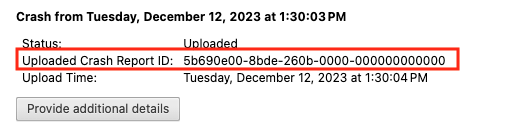
After you click the “Send Now” button, return to brave://crashes and gather up the Crash Report ID numbers that end with a string of zeros. Post the numbers, here, in a new reply. Example of a Crash Report ID number:
Study how to use Brave Shields:
- Shields Basics
- How do I configure global and site-specific Shields settings?
- How do I use Shields while browsing
Tips regarding Brave Shields:
I have more success, with:
- Brave Shields UP, but . . .
- Either Allow All Cookies or Block 3rd Party Cookies, but NOT Blocking All Cookies
- Allowing JavaScripts from specific sources, but NOT Allowing All JavaScripts
- Trackers & Ads treatment: Aggressive (at first), and then incrementally relaxing that setting
- Fingerprinting (aka footprinting) blocking: Strict (at first), and then incrementally relaxing that setting
I almost never use:
- All of Brave Shields UP
- All of Brave Shields DOWN
Create a new user Profile for Testing:
Handy to keep around/maintain, for some tests > Create AN ADDITIONAL Brave Browser user Profile (Menu --> More tools --> Add profile). When creating:
- Make no appearance adjustments other than to set user profile color at
brave://settings/manageProfile. - Do not import anything.
- Do not add any extensions.
- Do not make any adjustments to content filtering at
brave://settings/shields/filters. - Do not allow/enable any Brave Browser “bells and whistles” such as Brave Rewards, Brave Talk, etc.
Suggest that after you create that new user profile, Exit / Quit everything and restart the computer … and then choose the new user profile when testing.
You might also take a look at:
‘Create a new profile to help Troubleshoot’
In some cases, an extension may be the culprit re some lost data and/or other misbehavior.
Extensions Tests:
- test by disabling all extensions
- test by enabling each extension individually
- test by uninstalling all extensions
- test by installing each extension individually
- test combinations of extensions
- test order of installation of extensions
Clearing cache, cookies, history, etc.:
- Clear cache, cookies, history, and whatever else you choose - for
Time range>All time, usingAdvancedtab atbrave://settings/clearBrowserData - Exit / Quit everything
- Restart the computer
IF only wanting to clear cookies and cache:
- Enable
Cookies and other site data - Enable
Cached images and files - Click the
Delete databutton - Exit / Quit everything
- Restart the computer
NOTE: The Basic tab was formerly among the now → Advanced, On exit group ← but the tab disappeared.
Brave Browser (MacOS) users:
When you want to restore Brave Browser (MacOS) to a known-working status 'back in time' - you need a chronological backup
In order to make chronological backups of the Brave Browser (MacOS) installation’s BraveSoftware folder at:
/Users/[username]/Library/Application Support/BraveSoftware
I created an AppleScript, used within an Automator application, that I named bkup_BraveSoftware_fldr.app.
When Brave Browser does something strange, and you want to restore Brave Browser to a known-working status “back in time,” then - WITHOUT Brave Browser running (your making sure, by examining the Activity Monitor application) - you can set the existing BraveSoftware folder at:
/Users/[username]/Library/Application Support/BraveSoftware
aside . . . and expand one of the chronological backups → will cause that backup’s un-zipped folder BraveSoftware to show at:
/Users/[username]/Documents/BraveSoftwareBKUPS/BraveSoftware
and move that older BraveSoftware into position at:
/Users/[username]/Library/Application Support/
Thus, restoring Brave Browser to a slightly older point in time.
That is how I have restored all Internet browsers on the Mac, for many years, by maintaining chronological backups.
Steps to create the backup application
Startup Automator application ← it is in the Applications folder.

Click the Application icon, and then click the Choose button.
In the Untitled (Application) window that displays, the adjacent scroll area to the left ← scroll down in that area, to Run AppleScript

Drag that Run AppleScript action over to the right . . . and into the area that reads: Drag actions or files here to build your workflow.
A frame will display with title Run AppleScript

You are going to copy the AppleScript code and paste it on the area that reads: (* Your script goes here *)

The AppleScript to copy, is the entire, lightly-gray-shaded area:
--
--
-- Makes a .zip compressed backup of the BraveSoftware folder located
-- at: /Users[/username]/Library/Application Support/BraveSoftware
--
-- The backup is stored
-- at: /Users[/username]/Documents/BraveSoftwareBKUPS/
--
-- The backups are named in order for them to display in the Finder,
-- in chronological order; example:
--
-- 20260207-234745_EST_Saturday_BraveSoftwareBKUP.zip
--
set hmFldr to (path to home folder) as string
set storedDelimiters to AppleScript's text item delimiters
set AppleScript's text item delimiters to {":"}
set btVol to first text item of hmFldr
set usrNm to third text item of hmFldr
set AppleScript's text item delimiters to storedDelimiters
--
set POSIXpthToBraveSoftware to "/Volumes/" & btVol & "/Users/" & usrNm & "/Library/Application Support/BraveSoftware"
set POSIXpthToBraveSoftwareQ to quoted form of POSIXpthToBraveSoftware
--
set bkupPth to "/Volumes/" & btVol & "/Users/" & usrNm & "/Documents/BraveSoftwareBKUPS/"
set bkupPthQ to quoted form of bkupPth
--
tell me to (do shell script ("mkdir -p " & bkupPthQ))
--
tell me to set dateTimeStamp to ("" & (do shell script "date \"+%Y-%m-%d %H.%M.%S\" | sed -e 's/\\.//g' -e 's/\\-//g' -e 's/\\ /-/g'") & "_" & (do shell script "date | egrep -o 'EDT|EST|CDT|CST|MDT|MST|PDT|PST'") & "_" & (do shell script "date | sed -e 's/\\ .*//g' -e 's/Sun/Sunday/g' -e 's/Mon/Monday/g' -e 's/Tue/Tuesday/g' -e 's/Wed/Wednesday/g' -e 's/Thu/Thursday/g' -e 's/Fri/Friday/g' -e 's/Sat/Saturday/g' -e 's/\\...$//g'") & "") -- .%S seconds: -e 's/\\...$//g'
--
set destItem to bkupPth & dateTimeStamp & "_BraveSoftwareBKUP.zip"
set destItemQ to quoted form of destItem
--
tell me to (do shell script ("ditto -c -k -X --sequesterRsrc " & POSIXpthToBraveSoftwareQ & " " & destItemQ & "; wait"))
--
--
--
--
After the paste action, you will see:

Next, in the Automator’s menu bar > select File and scroll down to, and select, Save...

A pop-up window will display, where you can create the name for the new application - replacing Untitled:

with bkup_BraveSoftware_fldr

Click the Save button, saving the new application to your Desktop.
Quit Automator.
When you run the bkup_BraveSoftware_fldr.app application, a backup of the BraveSoftware folder at:
/Users/[username]/Library/Application Support/BraveSoftware
will appear at:
/Users/[username]/Documents/BraveSoftwareBKUPS/
A screenshot taken after 3 runs of the bkup_BraveSoftware_fldr.app application:
