Description
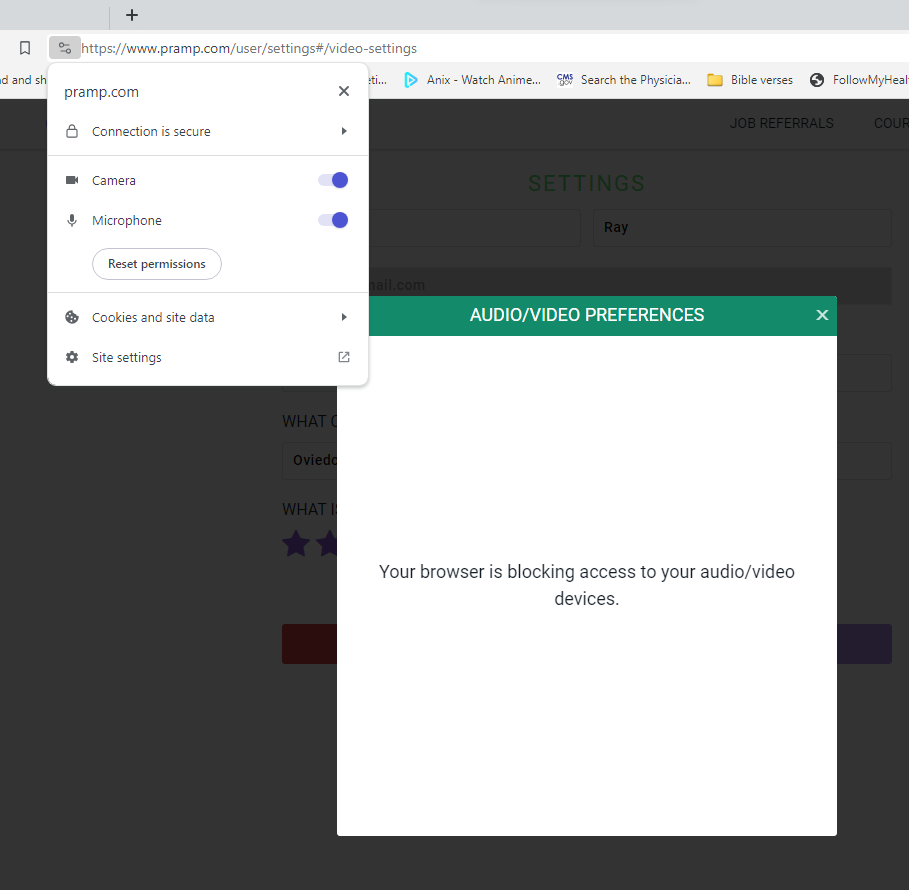
I cannot use Pramp because the microphone and camera are blocked, even though I had previously enabled these to be allowed on the website.
How can this issue be reproduced?
- Have camera and mic access set to
Allowedin Brave settings for pramp.com. - Go to www.pramp.com.
- Login to the website (this is required to use the site).
- Click on your name in the top right to expose a drop-down menu.
- Select Camera/Mic.
- The camera and mic are blocked on this website.
Expected result:
A small pop-up appears, displaying your camera feed (if there is one), as well as microphone playback, and camera and microphone settings.
Brave Version (check About Brave):
Windows:
Version 1.60.110 Chromium: 119.0.6045.105 (Official Build) (64-bit)
Version 1.61.55 Chromium: 119.0.6045.59 (Official Build) dev (64-bit)
MacOS:
Version 1.60.110 Chromium: 119.0.6045.105 (Official Build) (x86_64)
Additional Information:
The image below (taken on a Windows PC) is the result of the issue.

- When I tried this in Safari on Mac, it worked just fine.
- Additionally, when I purposely reset the permissions for the website, it did not prompt me to enable camera and mic access again. I cleared my cookies for the site as well, and this did not work.
- I also tried opening a session in Zoom from the MacOS browser, and Brave allowed access to my mic and camera just fine, including with the pop-ups asking for permission “until I close this site”.
- I have used this site on Brave many times before, and I haven’t had this issue. Usually the site gets fussy if Brave hasn’t been updated, but when I updated it the issue persisted this time.
- Windows Version: Windows 10 Pro 22H2 19045.3570
- MacOS Version: MacOS Ventura 13.5.2