I have an issue with cookies… For some reason, many websites are ending up putting cookies in the “sites that can always use cookies” even though I dont get to choose who goes in that section. Once a website has cookies in that section, I can not delete them. For example, Levi.com and ikea.com and highlakeshealthcare.com all have cookies in that section, I would not have willingly put them there, but now I cant get rid of them because the remove function doesnt work. I have reported this before, over a year ago.
Mac OS 12.5.1 (21G83)
Brave Version 1.42.97 Chromium: 104.0.5112.102 (Official Build) (x86_64)
](https://brave.com/latest/)
Description of the issue:
Steps to Reproduce (add as many as necessary): 1. 2. 3.
Actual Result (gifs and screenshots are welcome!):
Expected result:
Reproduces how often:
Operating System and Brave Version(See the About Brave page in the main menu):
Additional Information:
If you are still having issues…
Cannot delete a site on "Sites that can always use cookies" - #5 by CerealLover
** Sites That Can Always Use Cookies**
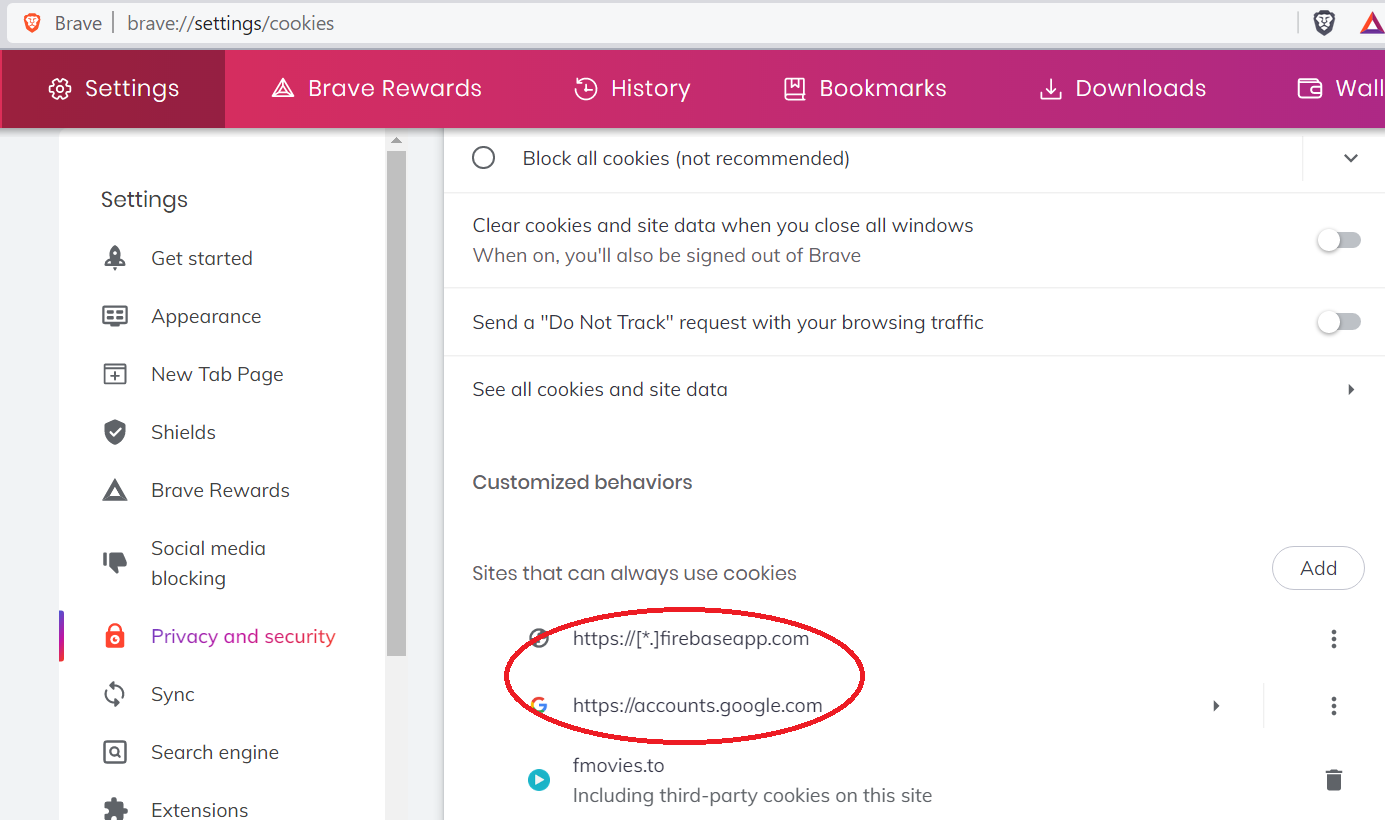
Everyone of us is surprised to see a list of strange sites under the header ‘Sites That Can Always Use Cookies’ @ brave://settings/cookies. This list gets even stranger and taller especially if other users are sharing the same computer. There are many posts that have reported and still report this issue. Is is a bug, is is a virus or something else? The simplest answer is ‘no’ as there are three known causes for this:
THE CAUSES:
- You toggled Brave shield to OFF for the visited site because otherwise it won’t open correctly;
- You allowed Third Party Cookies @
brave://settings/cookies
- You enabled ‘Allow Google login buttons on third party sites’ especially for the urls: https://[*.]firebaseapp.com and https://accounts.google.com
THE SOLUTIONS (gathered from posts):
The solution for 1) and 2):
- Open
brave://settings/cookies, doubleclick on the the url, then right-click to go to URL (see image below).
- On the website that opens, toggle Brave shield (Ornage Icon) to ON; Check @
brave://settings/cookies (see image below).
Solution for 3)
Open brave://settings/socialBlocking and disable ‘Allow Google login buttons on third party sites’ (see image below); Go back to @ brave://settings/cookies to check.
Cannot delete sites from “Sites that can always use cookies” #12375
Canowyrms commented Feb 19, 2022
Just ran into this issue myself. I skimmed through the conversation here, but if I’m restating an already-mentioned solution, sorry, I missed it.
As another user here mentioned, this is related to the sync chain. I had just installed the latest version of Brave for Win 10 on a fresh installation of Win 10. The entries under “Sites that can always use cookies” appeared after entering my sync code, and, you can probably tell where this is going, I couldn’t remove them.
My solution was to:
- Leave the sync chain.
- Clear ALL browsing data - absolutely everything, even under the ‘advanced’ tab.
- Exit Brave and wait a few seconds (ensure all processes shut down).
- Open Brave and check the “Sites that can always use cookies” section to confirm it was empty (it was).
- Start a new sync chain.
- Went back to the cookies section and confirmed the entries didn’t come back from the grave.
- Copy the sync chain code into password manager like BitWarden for when I need to update my other devices.
I have yet to use the new sync code on my other devices (only two others, so not terribly inconvenient, thankfully), however, I reckon I will follow steps 1 through 3 on my other devices before I switch to the new sync chain code. Somewhat inconvenient, but easier (for me, anyway) than mucking around with settings files, and I don’t care that I’ve lost some browsing data.  that the entries don’t come back from the grave on my other devices…